AWS Documentation
Purpose
This workflow automatically creates a new AWS IAM user with Administrative privilege and
delivers
the generated credentials to the specified email address.
How to Use
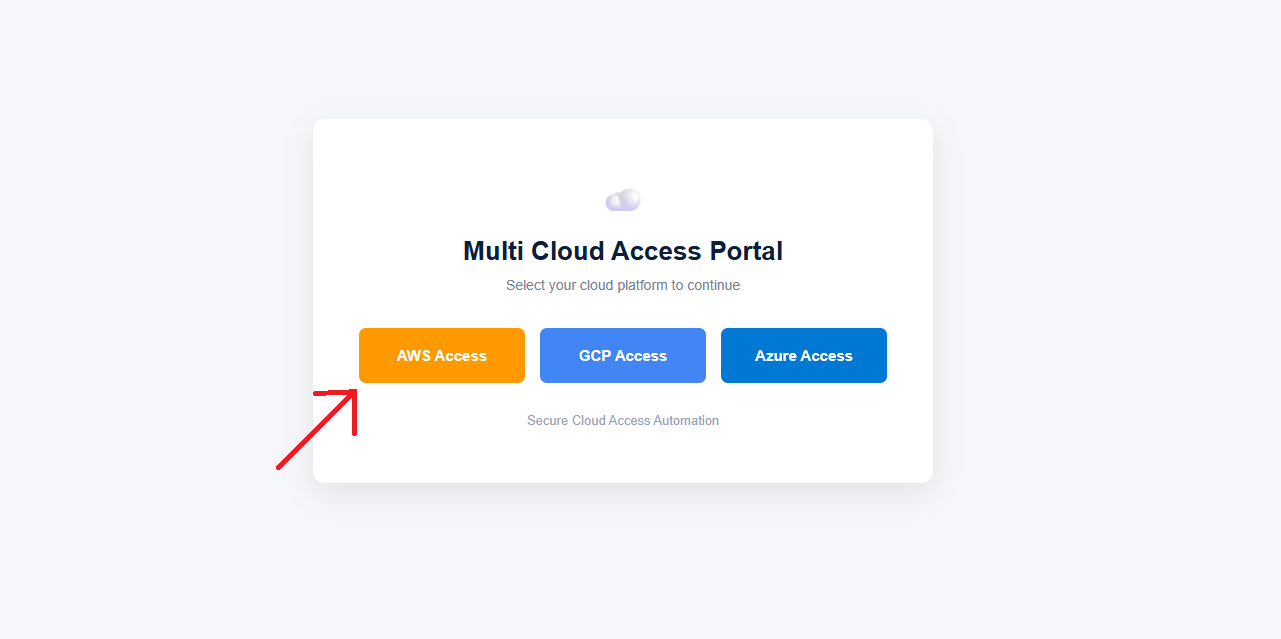
Step 1: Open AWS Access
Click the AWS Access button on the
Multi Cloud Access Portal.
Step 2: Sign in to the AWS Account
Note : ''Skip login steps if your browser have active AWS session.''
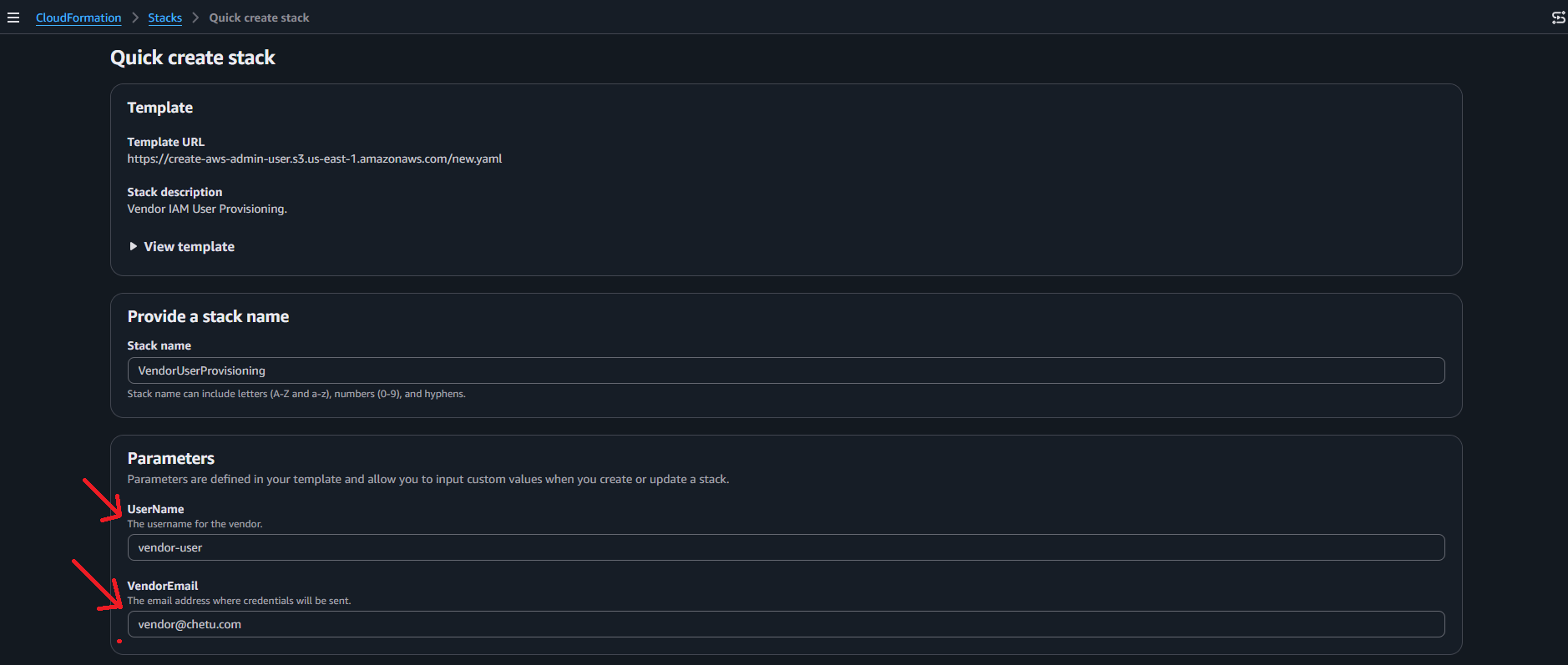
The browser will redirect to the AWS CloudFormation
Quick create stack page.
If the AWS page does not open directly, sign in to the required
AWS account. After successful sign-in, continue to the
CloudFormation page.
Step 3: Update the User Details
In the Parameters section, update the following
fields:
-
UserName:
Enter the name of the new AWS IAM user.
-
VendorEmail:
Enter the email address where the generated credentials
should be delivered.
Step 4: Select the Acknowledgement Checkbox
Scroll to the bottom of the CloudFormation page and select the
following acknowledgement checkbox:
I acknowledge that AWS CloudFormation might create IAM resources
with custom names.

Step 5: Create the Stack
After selecting the acknowledgement checkbox, click the
Create stack button.

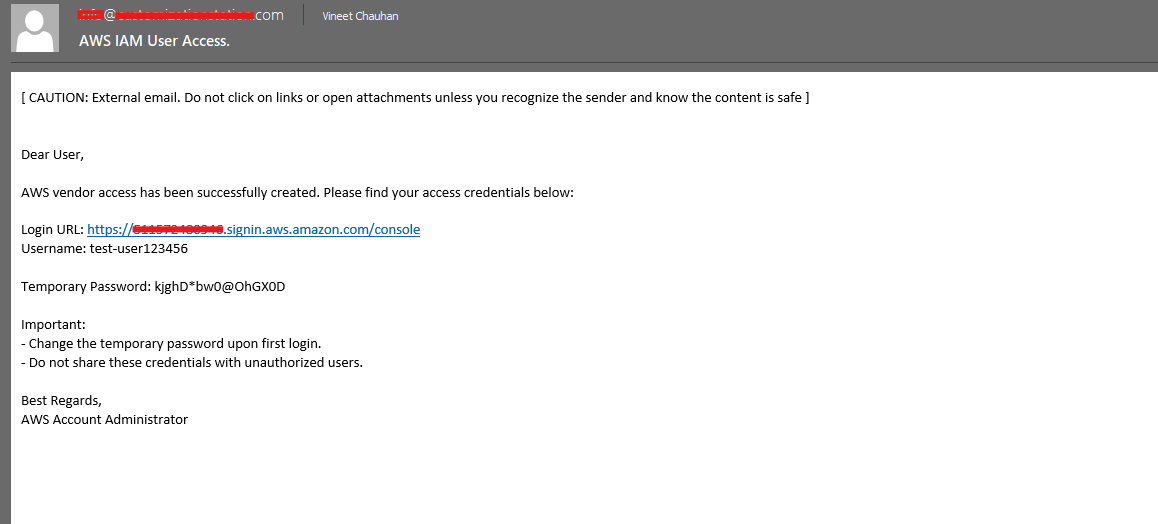
Step 6: Receive the Credentials
Wait a few minutes while AWS CloudFormation creates the IAM user.
After successful user creation, the generated credentials will be
delivered automatically to the specified
VendorEmail address.
GCP Documentation
Purpose
This workflow grants the selected Google Cloud role to a user for the
chosen GCP project through an automated authentication and access
provisioning process.
How to Use
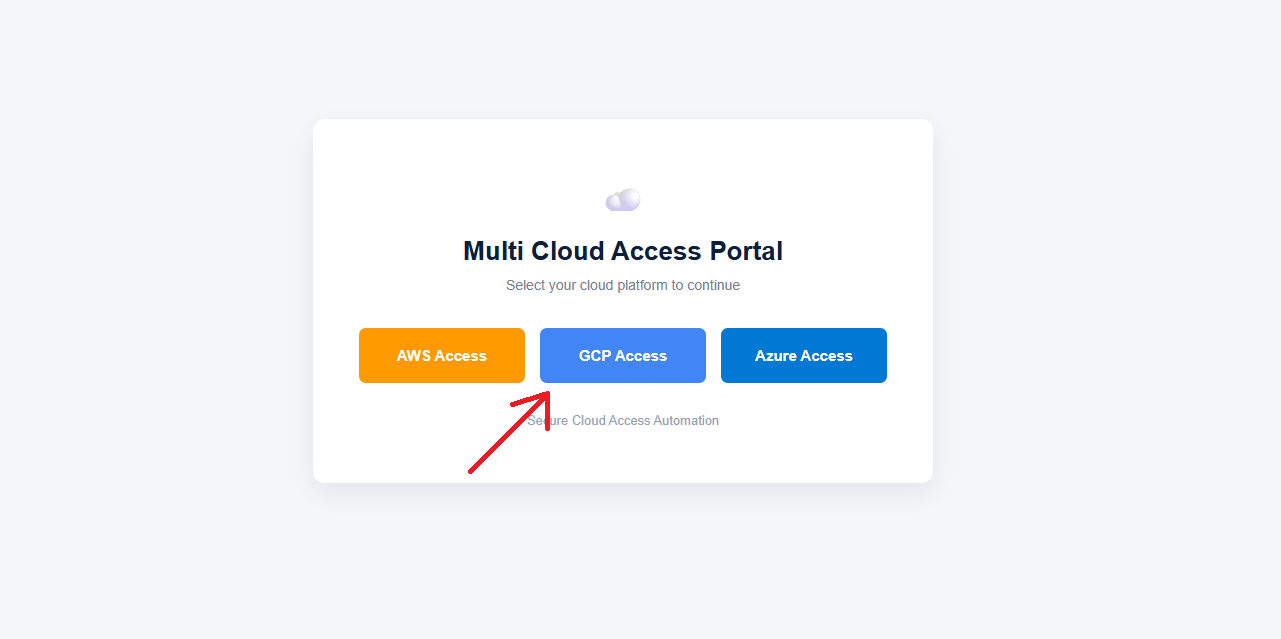
Step 1: Open GCP Access
Click the GCP Access button on the
Multi Cloud Access Portal.
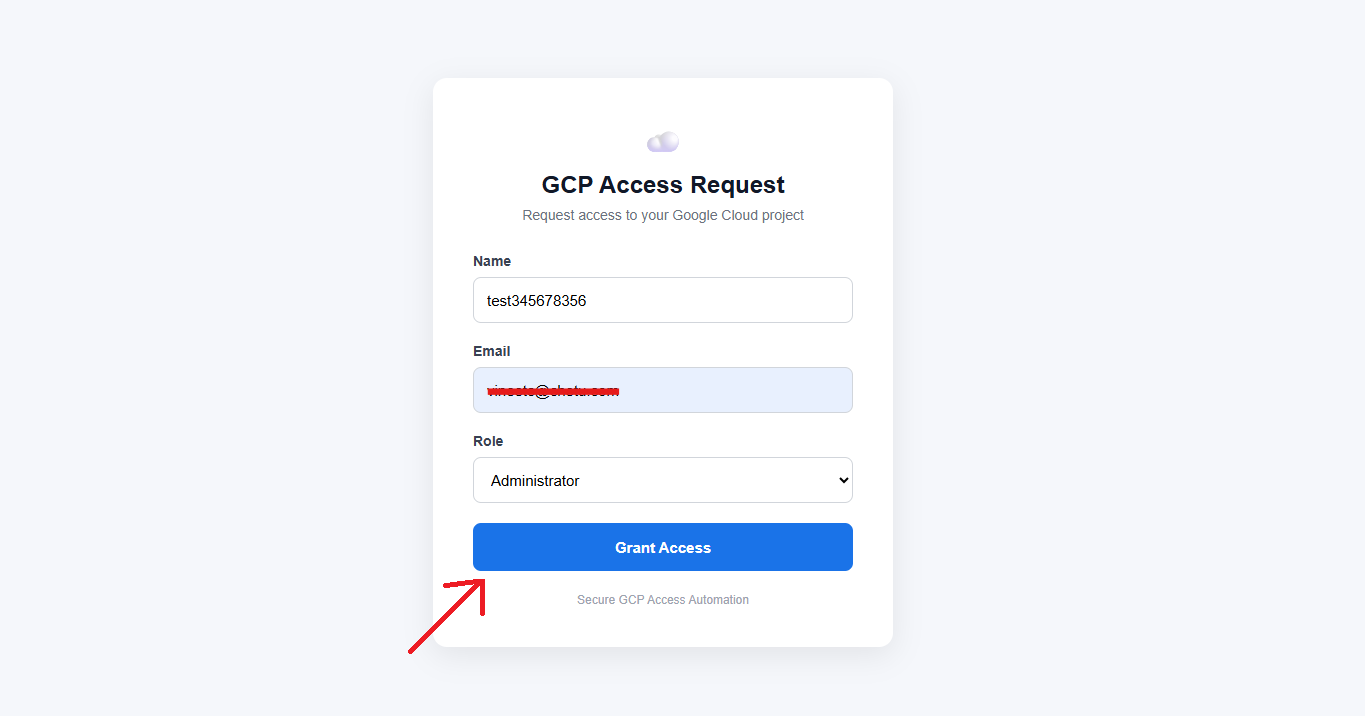
Step 2: Open GCP Access Reques Page
The GCP Access Request page will open.
Enter the following required information:
-
Name:
Enter the name of the user who requires GCP access.
-
Email:
Enter the Google account email address that requires access.
-
Role:
Select the required role, such as
Admin or Developer.
After entering all required information, click the
Grant Access button.
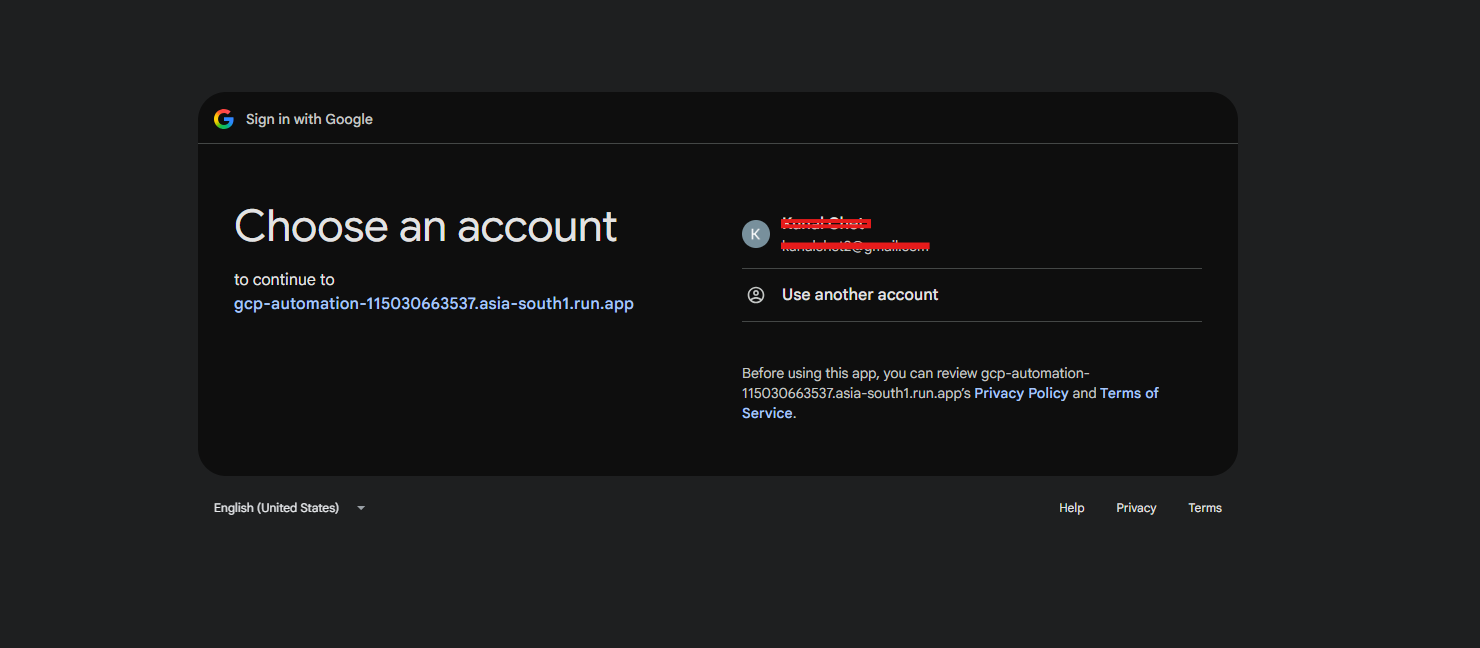
Step 3: Choose a Google Account
Select the Google account that will be used to authenticate the
access request.
If the required account is not displayed, click
Use another account and sign in with the required
Google account.
Step 4: Complete Google Authentication
Complete the Google sign-in process and continue through the
authentication screens until the Google account is successfully
authenticated.
Continue - continue - continue
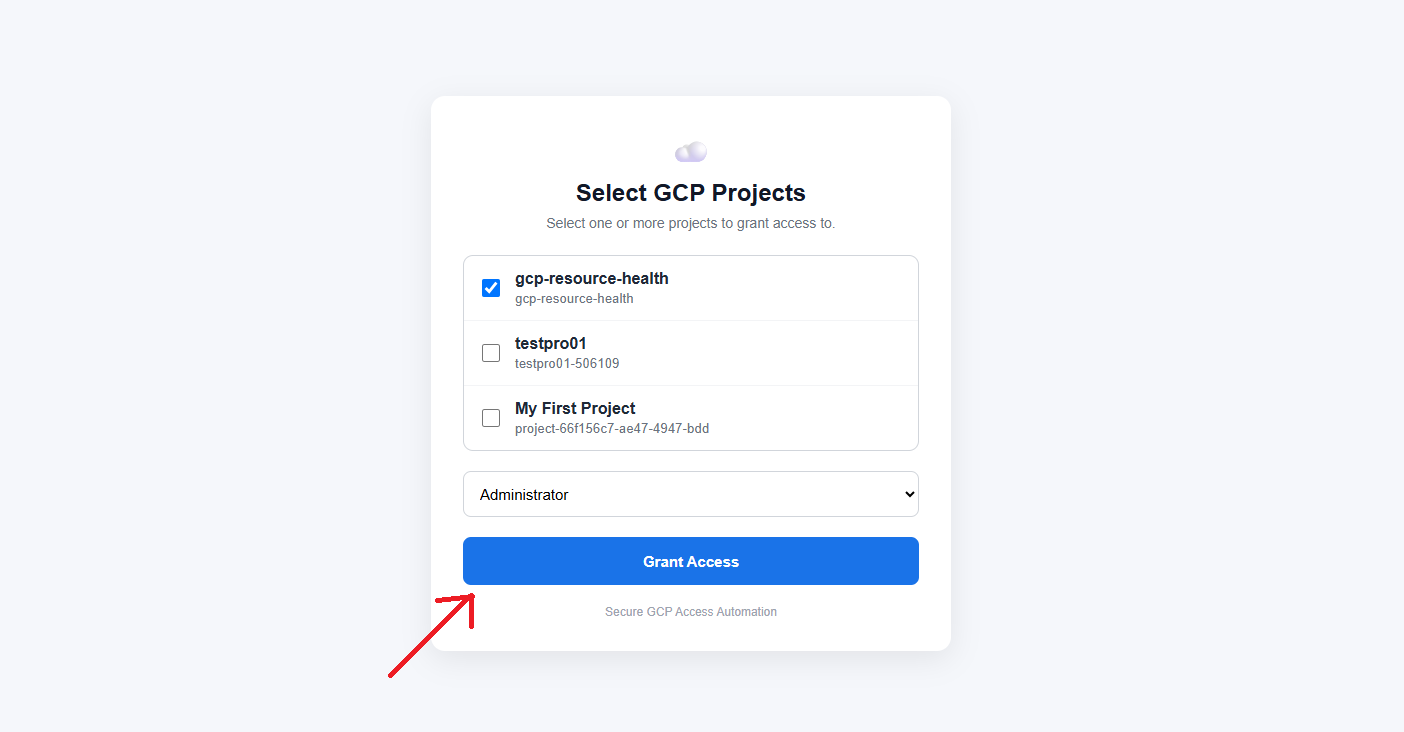
Step 5: Select the GCP Project
After successful authentication, a list of available Google Cloud
projects will be displayed.
Select the project where the requested role should be granted.
Step 6: Confirm Successful Access
After selecting the project, the automation grants the selected
role to the specified Google account.
A success screen will appear after the access request is completed.
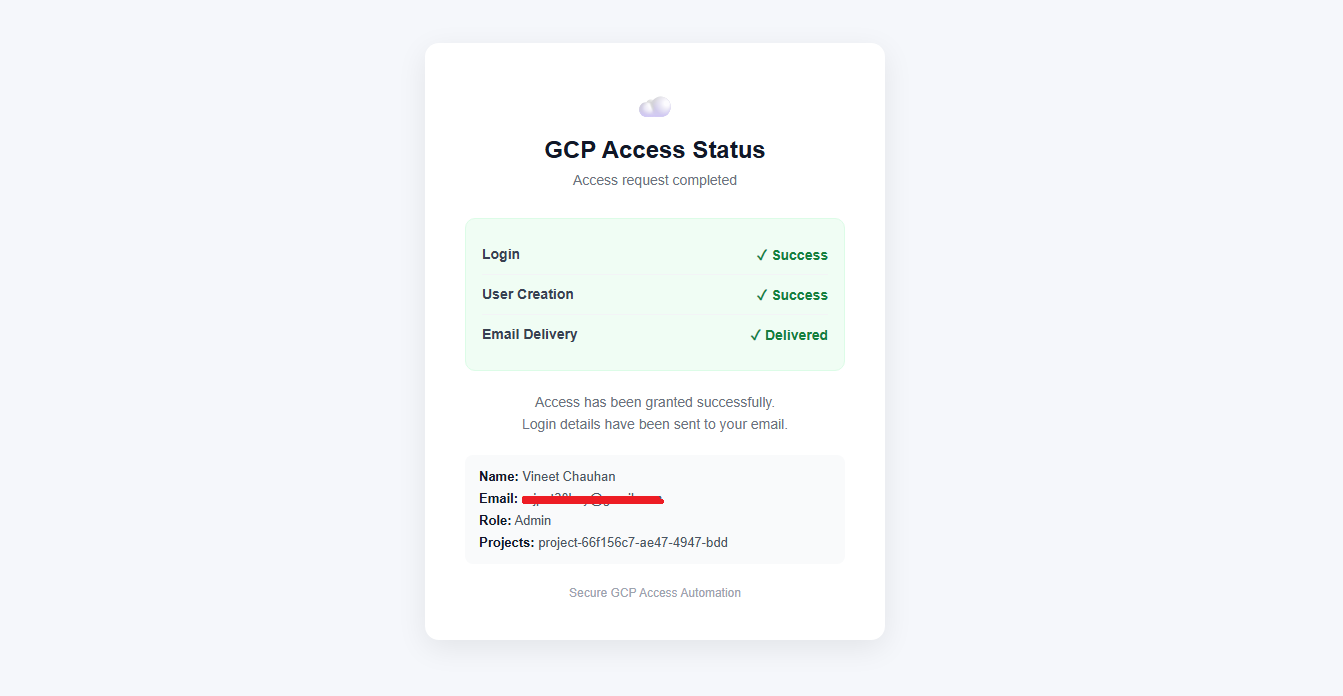
GCP access has been granted successfully.
Step 7: Receive the Success Email
After the requested GCP role is assigned successfully, a confirmation
email will be sent to the email address provided in the access request.
The confirmation email includes:
- The assigned GCP role
- The selected GCP project ID
- A link to the Google Cloud Console
- The email address granted access
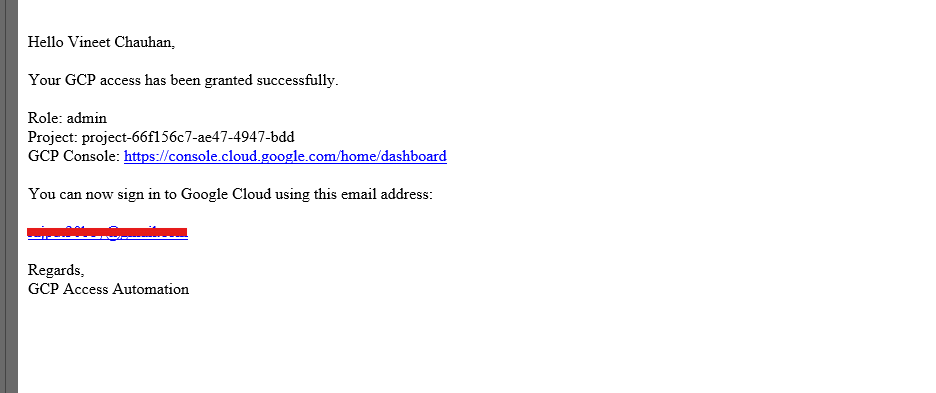
GCP access is complete after the success email is received.
Azure Documentation
Use the Azure Access option to request access to an Azure
tenant or subscription through the automated workflow.
Access Process
- Select Azure Access from the portal.
- Sign in with the authorized Microsoft account.
- Select the required tenant and subscription.
- Select the required Azure role.
- Submit the request and check the delivery email.
Required Information
- Azure tenant
- Subscription
- User name
- Delivery email address
- Required Azure role